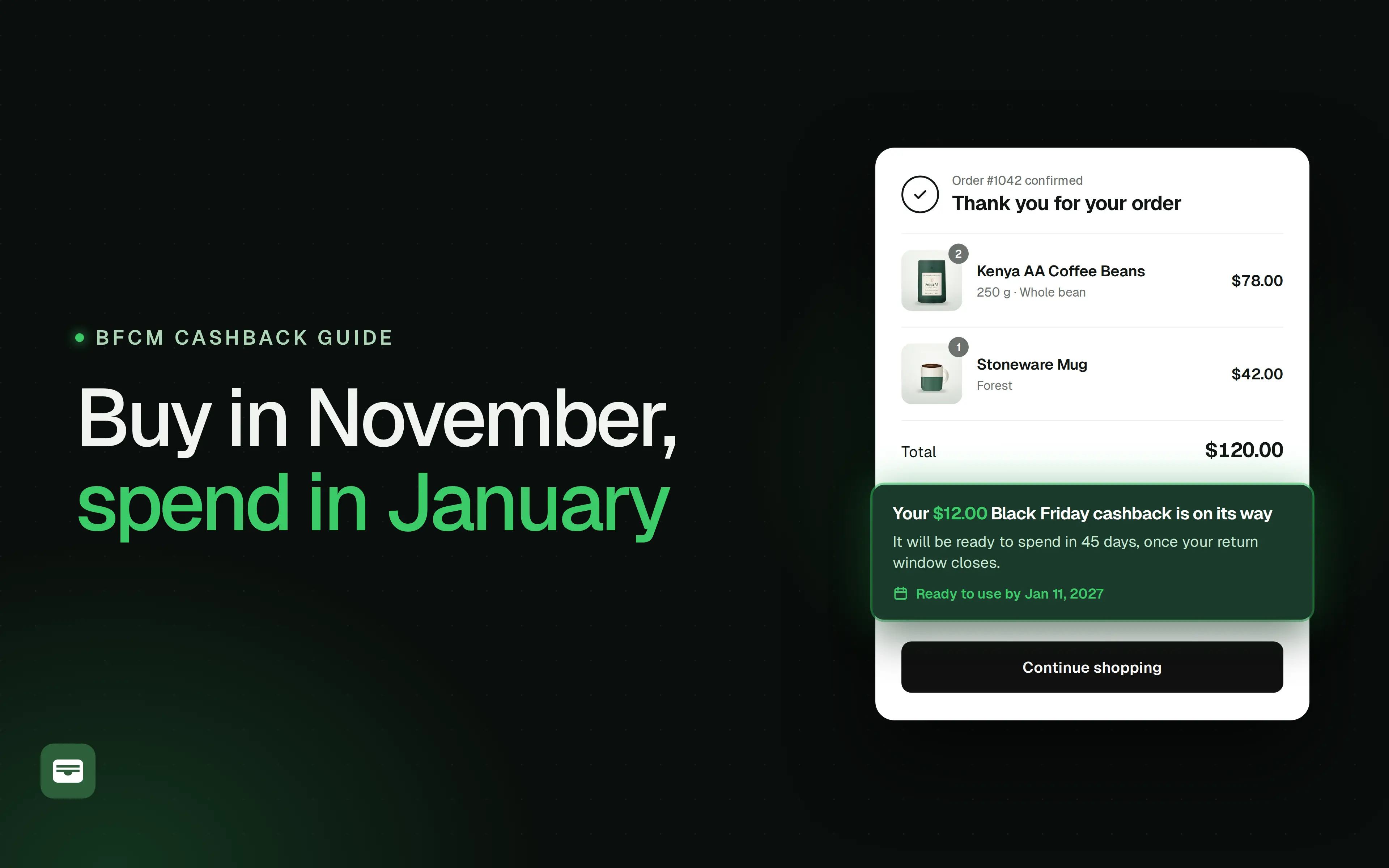
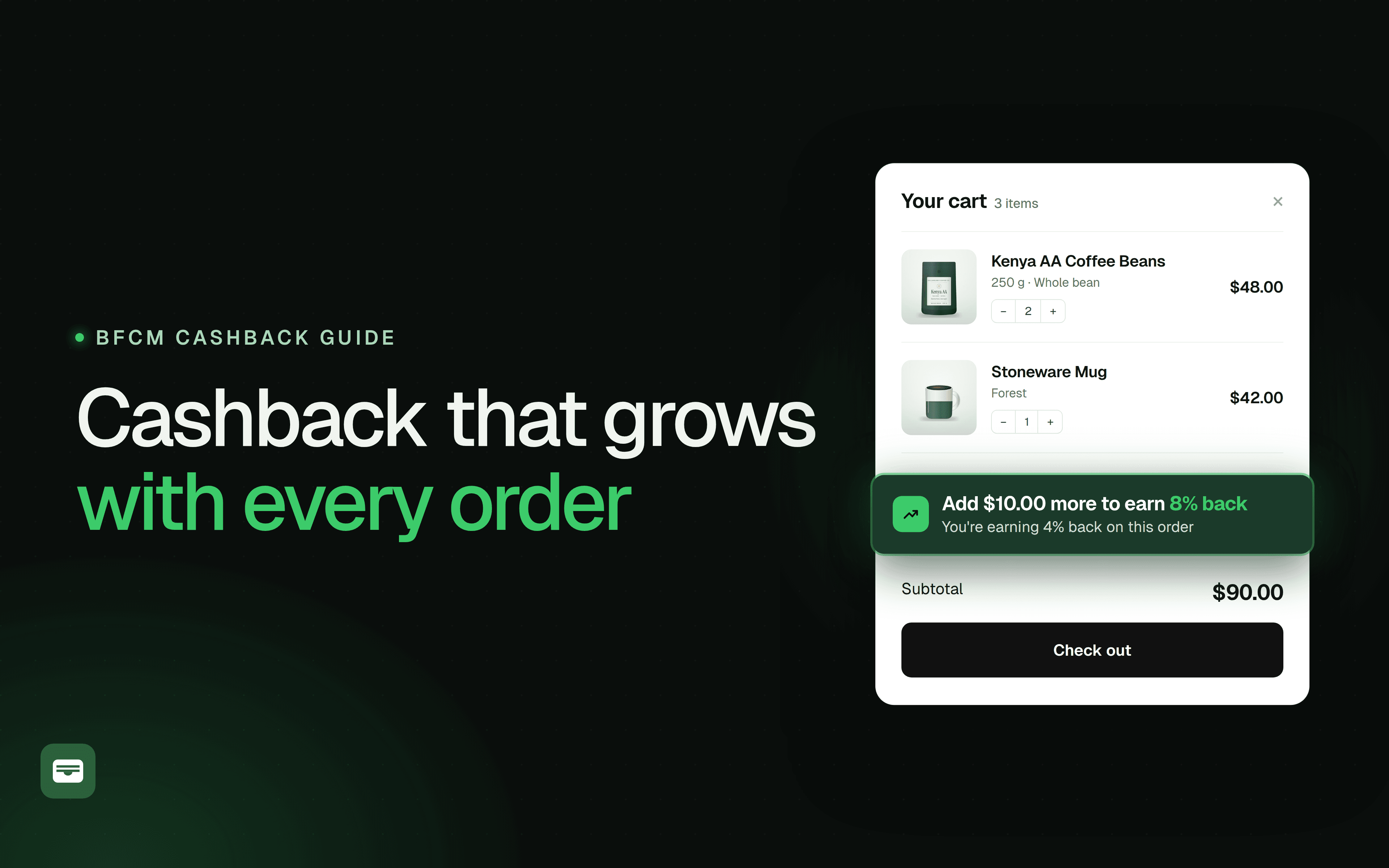
Shopify adds store credit to the customer profile that matches the email on the order, but it shows store credit at checkout only to customers who are signed in. A customer who placed their Black Friday order as a guest has credit on their profile, and doesn't see it until they sign in with that email.
Why It Happens
This is one of the most common mistake that customers make during the sale.
When a customer checks out as a guest, Shopify still saves a customer profile under the email on the order. Cashback from that order is added to this profile as store credit, whether or not the customer has ever signed in to an account.
At checkout, Shopify offers store credit as a payment method only to customers who are signed in through customer accounts or who use Shop Pay. If a Black Friday customer returns in January and checks out as a guest again, Shopify doesn't connect the checkout to their profile, so Apply store credit isn't shown. Many first orders over BFCM are guest checkouts, so this affects the customers you most want to bring back.
How to Fix It
A customer sees their credit when they sign in at checkout with the email from their order and enter the one-time code that Shopify sends to it. Add this instruction to the emails they already receive about their credit.
1. Add a sign-in line to the Store Credit Credited email
Go to DollarBack admin → Notifications, open Store Credit Credited and add a line such as: "To use your credit, sign in at checkout with this email address." Customers receive this email when their credit is issued, so it's the first time they read about it.
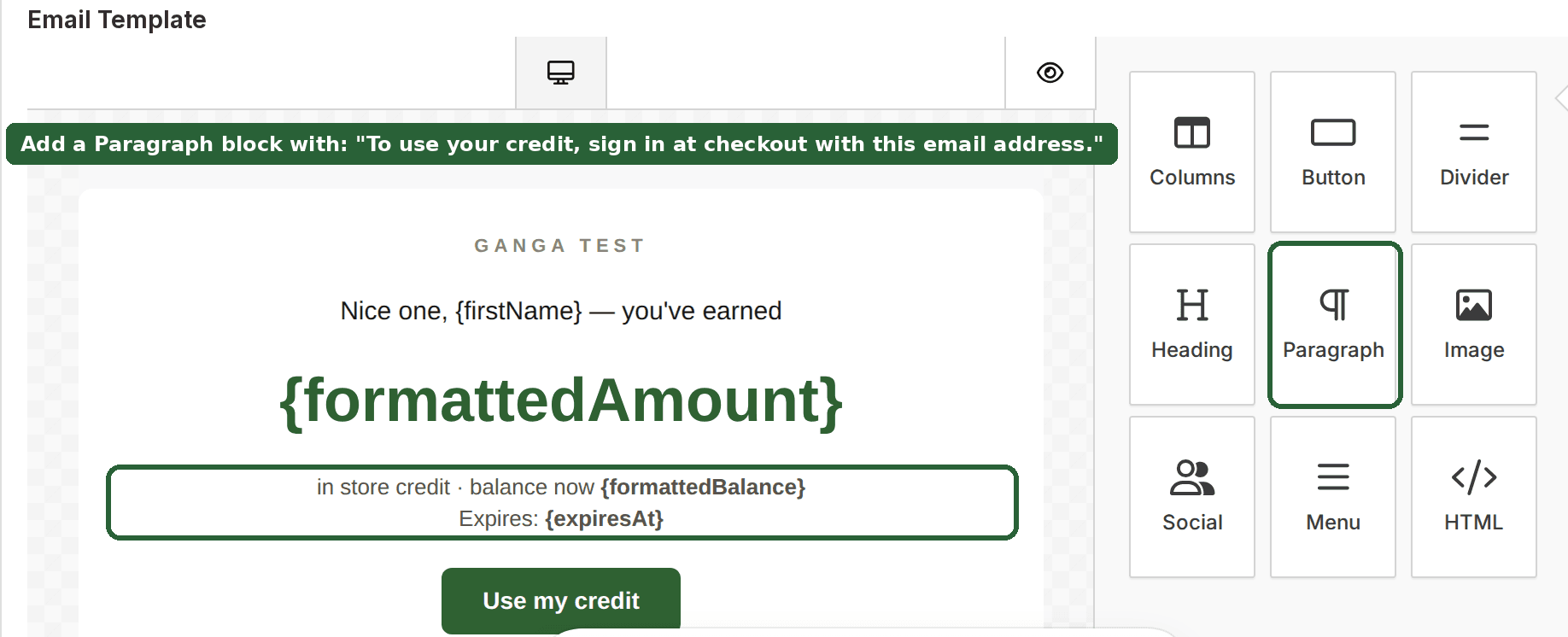
2. Add the same line to the Store Credit Expiry Reminder
If your BFCM credit has an expiry date, open Store Credit Expiry Reminder and add the same line. Set the Expiry Notification Schedule before Black Friday: DollarBack schedules each credit's reminders when the credit is issued, so a change in December doesn't apply to credit issued in November.
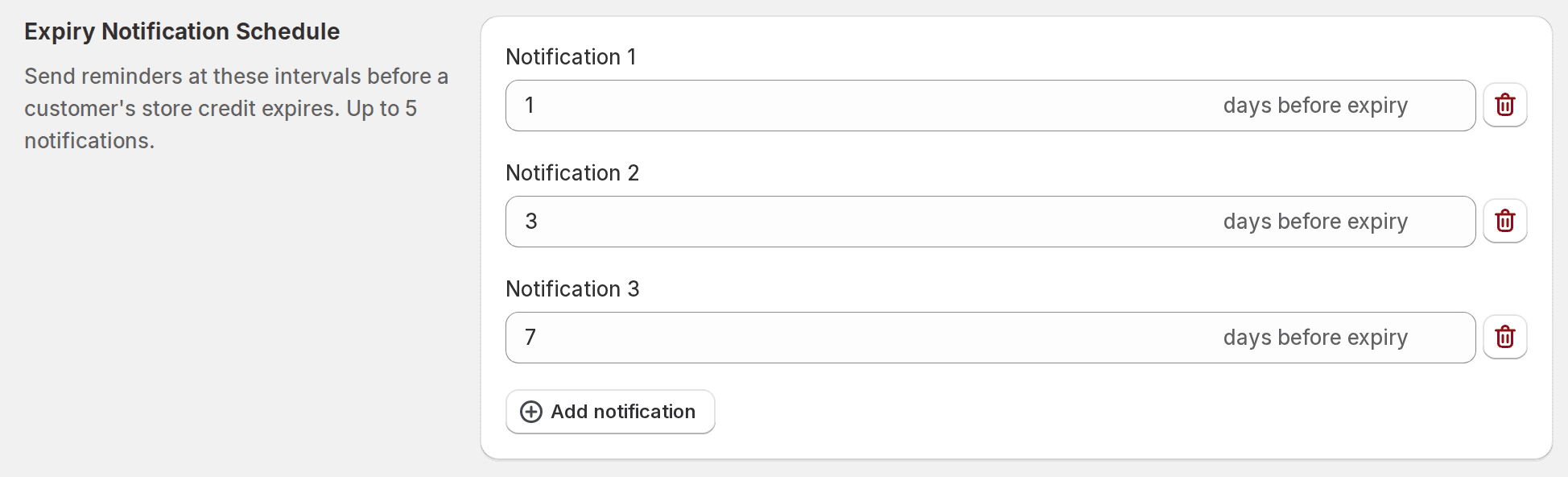
3. Test it as a guest customer
Place a test order as a guest with a new email address. After the credit is issued, start a new checkout, sign in with that email and the one-time code, and check that Apply store credit shows the correct balance.

Bring your BFCM customers back
Setting up Store Credit with Shopify Alone
- One customer at a time: you issue credit from each customer's page, which becomes considerably difficult and time consuming during the sale time.
- One notification: Notify customer sends an email when you issue the credit, and you edit its template yourself to explain how to sign in.
- No expiry reminder: Shopify doesn't email customers before their credit expires.
It's enough for a few manual credits, such as a goodwill gesture after a late delivery.
Still Not Showing?
If the customer is signed in with the correct email and still can't see their credit, check the store settings: a minimum cart rule, a different currency, or credit that is still in its holding period.
Go through this help article for a detailed walk through of what might be going wrong. \