Shopify applies automatic discounts to the cart, not to the product. Your product page is built from the product's own price and compare-at price, so it shows the full price until the product is added to the cart and the discount is applied there.
Why Isn't My Discounted Price Showing on the Shopify Product Page?
When a product is added to the cart, Shopify checks each automatic discount's conditions against the cart, such as the products, variants, quantities and subtotal, and applies a discount for each line item. Many of these conditions can only be checked once there is a cart.
Your theme builds the product page before that, from the product's own data. That data has a price and a compare-at price for each variant, but no field for an automatic discount, so the theme has no discounted price to show. This is the same on every Shopify plan, including Plus.
Can You Use the Compare-at Price to Show a Sale Price on Shopify?
The most common workaround is to lower the product's price and add the original price as the compare-at price. The theme then shows the sale price with the original price struck out. For a simple store-wide sale on a handful of products, this works well enough.
But it isn't really a discount. You're changing the price of the product itself, and that comes with its own limits:
- Everyone sees the sale price: you can't show it only to tagged customers or one market.
- You change it back by hand: on every product, when the sale ends.
- It can be discounted twice: if an automatic discount also covers the product.
How to Configure Automatic Discounts with Dollarlabs Automatic Discounts
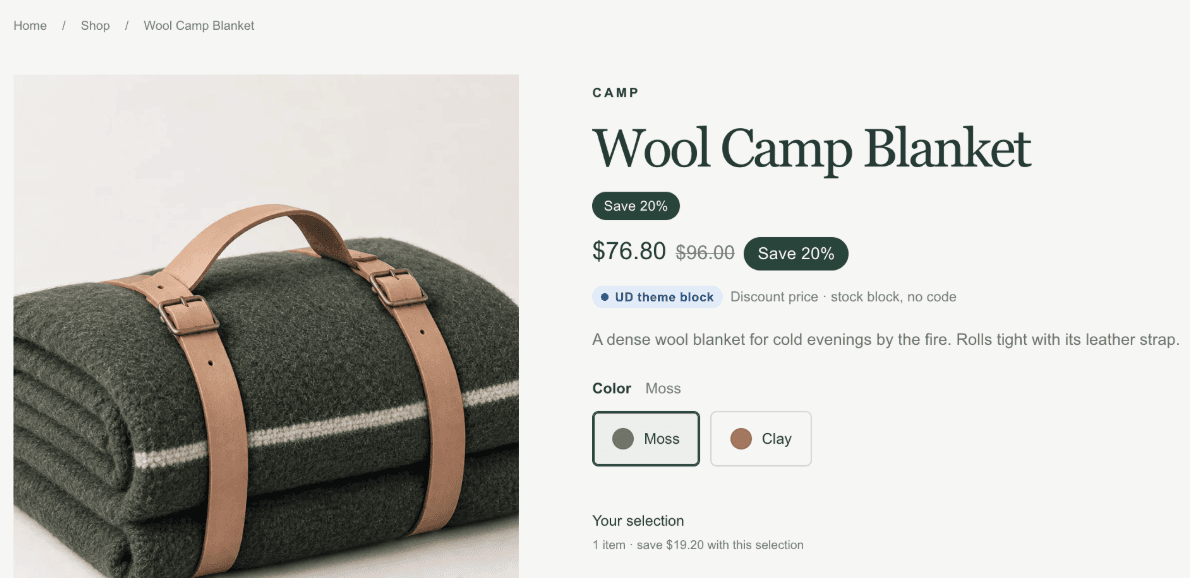
The Discount price block in Dollarlabs Automatic Discounts checks the same conditions as your offer, including customer tags, and updates when the customer picks another variant.
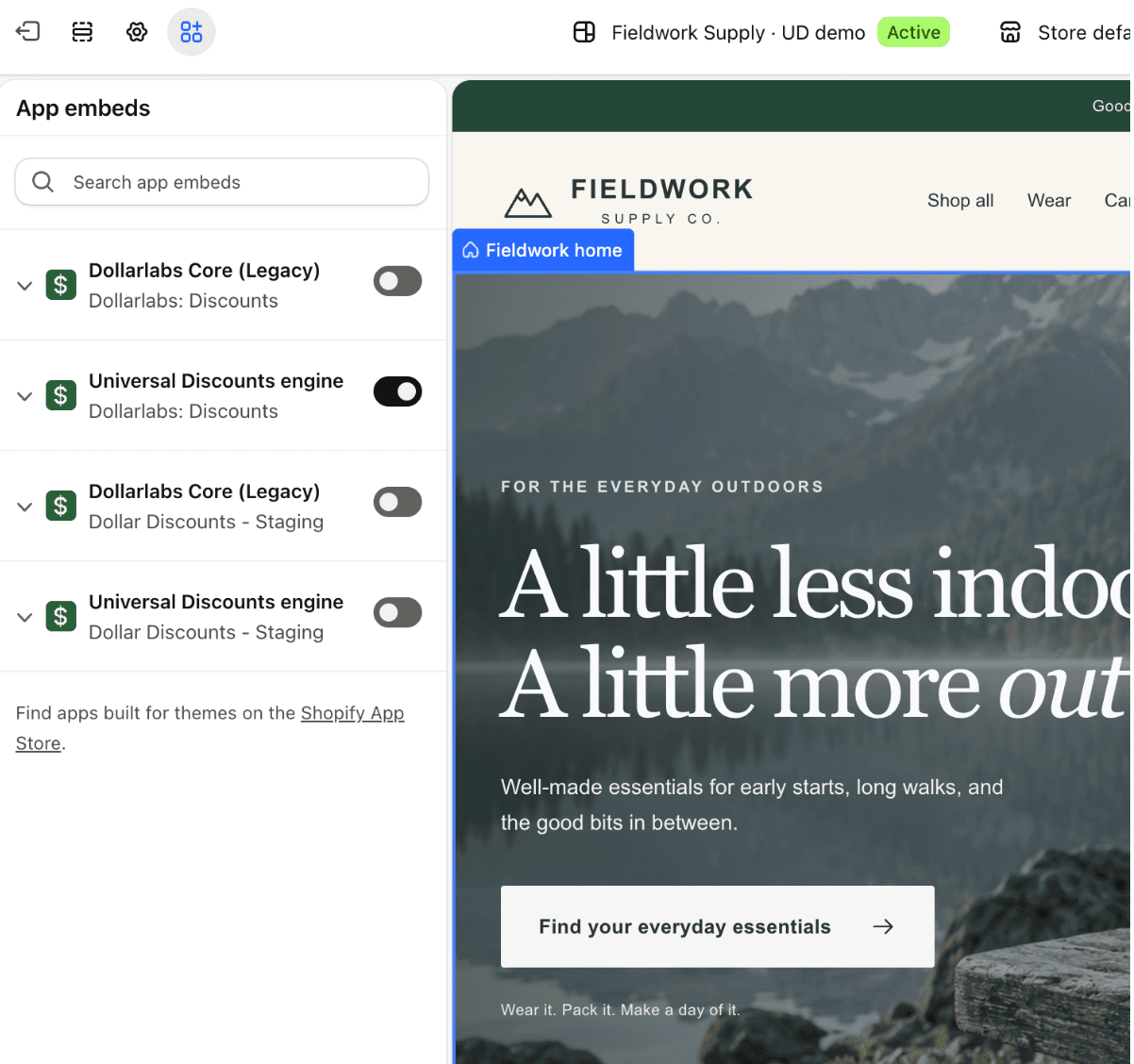
1. Turn on the Universal Discounts engine
Go to Online Store → Themes → Customize → App embeds and turn on Universal Discounts engine.
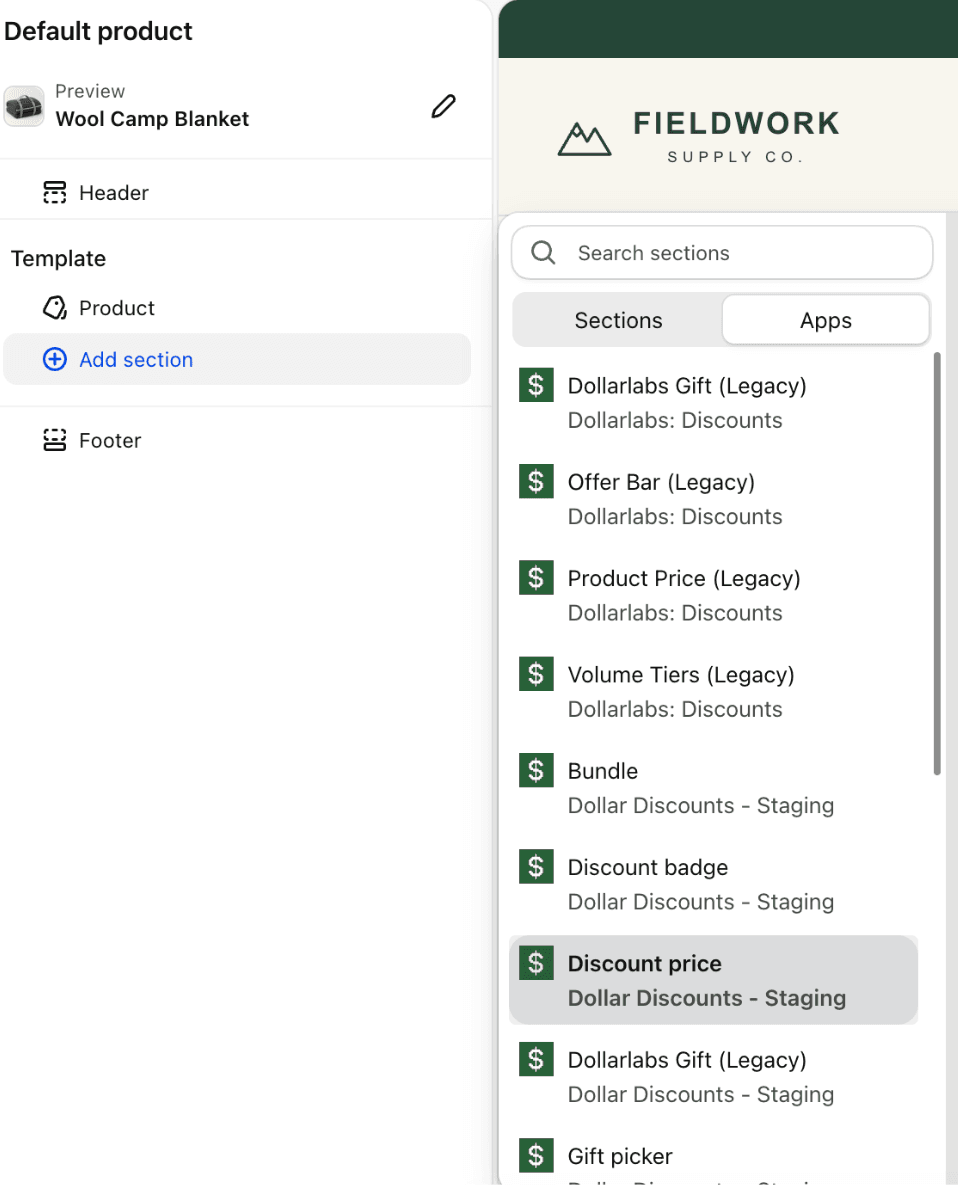
2. Add the Discount price block
In the theme editor, open your product template, click Add block and choose Discount price. Hide your theme's own price block.
Set up your discount now
3. Style the price
In the app, go to Storefront studio → Price and set the layout, the sale price colour, the struck-out original price and the saving.
4. Test your discount
Open a product your offer covers and check that the product page shows the same price as the cart. For an offer on a customer tag, check it logged in as that customer.
FAQs
Why does my discount show in the cart but not on the product page in Shopify?
Because Shopify calculates automatic discounts against the cart. Until the product is in the cart, your theme only has the product's own price and compare-at price to show.
Does Shopify Plus show automatic discounts on the product page?
No. The product page uses the same product data on every Shopify plan, so Plus stores have the same gap and need the same fix.
Do compare-at prices and discount codes stack in Shopify?
Yes. A discount code is calculated from the current price, not the compare-at price. A product with a $100 compare-at price, sold at $80, with a 20% code applied, ends up at $64.
Can I show a discounted price only to logged-in or tagged customers on Shopify?
Not with compare-at prices, because everyone sees the same product price. The Discount price block checks your offer's conditions, including customer tags, so a tagged customer sees their price once they are logged in.