Store credit as cashback is one of the simplest ways to turn your Black Friday first-time shopper into a loyal one lifetime. It gives customers who came for the discount a reason to place a second order, helping you get more value from the acquisition cost you've already paid.
But one mistake most merchants often make is crediting the cashback immediately. Customers use it in December itself while they are still doing their holiday shopping. So the credit that was intended to bring them back sometime early next year has already been used.
So what if customers earned their cashback in November, but could only spend it in January? In our last post, we looked at how much cashback to give. This one, we'll look at when to make it available, and how getting the timing right can improve your BFCM ROI.
Holiday Returns and Black Friday Cashback: Why the Timing Matters
The idea is pretty simple and straight forward; to separate out when customers earn their cashback and when they can actually spend it.
This year, the BFCM sale is from November 27 to November 30. Customers shop as usual, and earn their cashback, potentially a higher one if you plan for it. Instead of crediting it right away, it’s held off until your return window has officially closed.
Returns are the highest during the holiday season sale, and this is one major plus point for you. You don’t have to deal with the headache of cashback clawback if the customers are returning the products.
Each part of this has a purpose. The holding period outlasts your returns, so you only pay cashback on orders that customers keep. The cashback is credited only in January, one of the slowest sale months of the year. And the expiry date encourages customers to come back and use it soon.
How One Shopify Store Held Black Friday Cashback Until January
For BFCM '25, one of our merchants tried exactly this. Alongside its Black Friday sale, the store offered an additional 10% back as store credit.
- Customers who came back and spent more: After the cashback unlocked in January, customers returned to shop in February and March. The store credit covered about 60% of those orders, with customers paying the rest themselves.
- No cashback on returned orders: When an order was refunded during the holding period, its cashback was reduced or cancelled before it ever reached the customer.
How Long Should the Store Credit Holding Period Be?
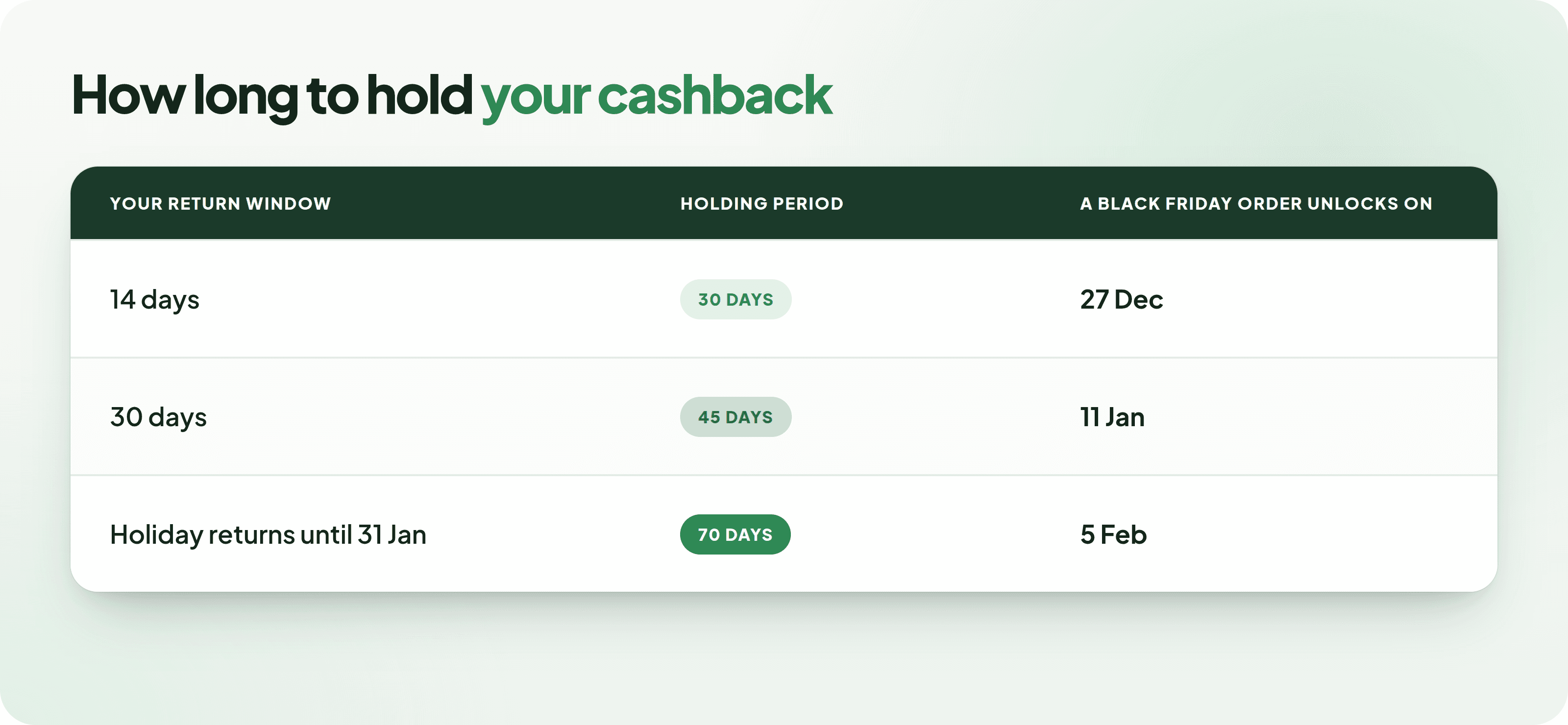
Start with your return window, then add the time it takes for a return to reach you. The holding period is counted in days from each order, and can be up to 45 - 60 days.
For example, if you offer 30-day returns and a return parcel can take up to two weeks to come back, a 45-day holding period works well.
Here's what merchants usually ask us when they set this up:
What if a customer cancels or returns part of the order during the holding period? The cashback adjusts on its own. Since the cashback hasn’t been credited yet, there’s nothing to take back. When the holding period ends, the cashback is worked out from the order as it is then. So a $200 order with 10% back and $80 refunded in December unlocks $12 in January instead of $20, and a cancelled order unlocks nothing. This works on every plan, with no extra setting.
Does the holding period apply only to my Black Friday program? No, it applies to every purchase program in your store. Increase it before the sale, and set it back after Cyber Monday. Orders that are already on hold keep their unlock date.
How to Set Up Delayed Shopify Store Credit for Black Friday Sale in Dollarback
1. Create the program
Go to Dollarback admin → Home, select the Cashback tab and click Manage configurations. Choose Purchase reward, and give it a name customers will recognise, like "Black Friday Cashback".
2. Set the dates
Add a Start date and tick Set an end date so the program covers your whole sale, including Cyber Monday. Make sure to include
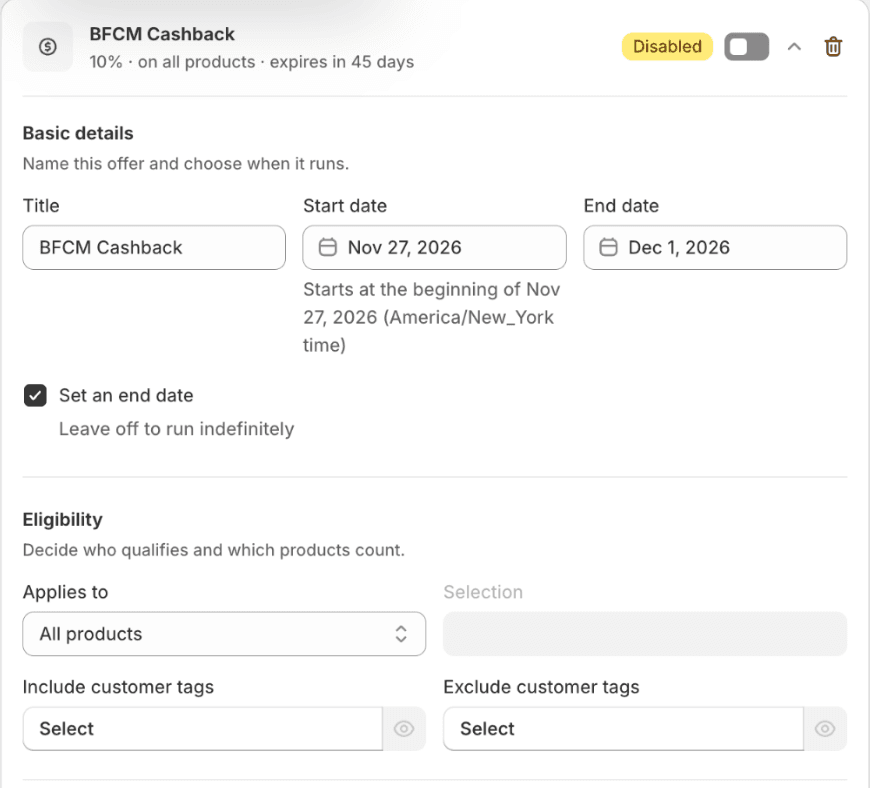
3. Set the reward and when it expires
Under Reward, keep Store credit as the reward kind and choose Percentage, for example 10%. Then set Credit expires: either on a specific date or after a number of days once the credit unlocks for the customer.
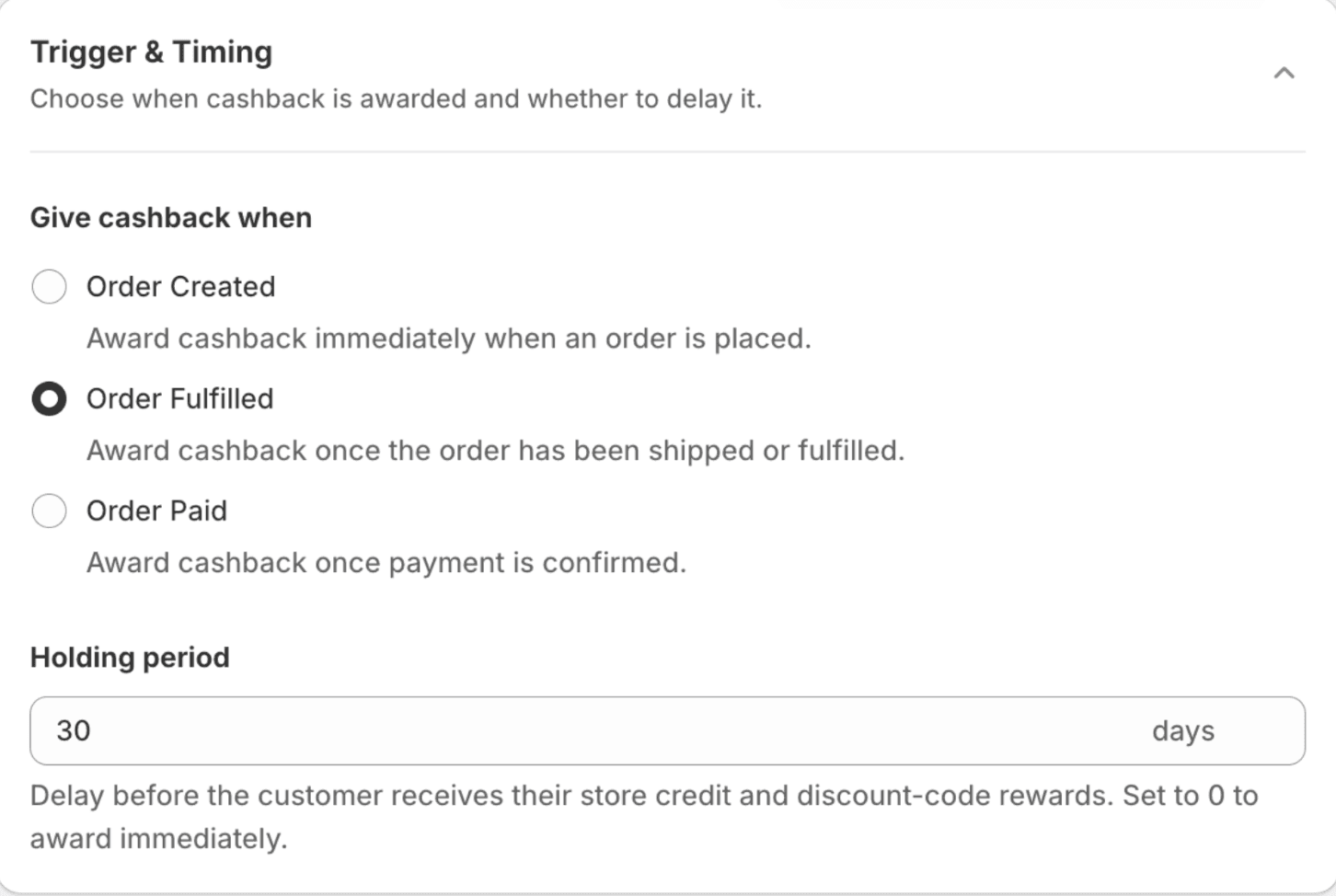
4. Set the holding period
Go to Settings → Trigger & Timing. Under Give cashback when, choose Order Created, Order Paid or Order Fulfilled, then enter the Holding period in days, based on your return window.
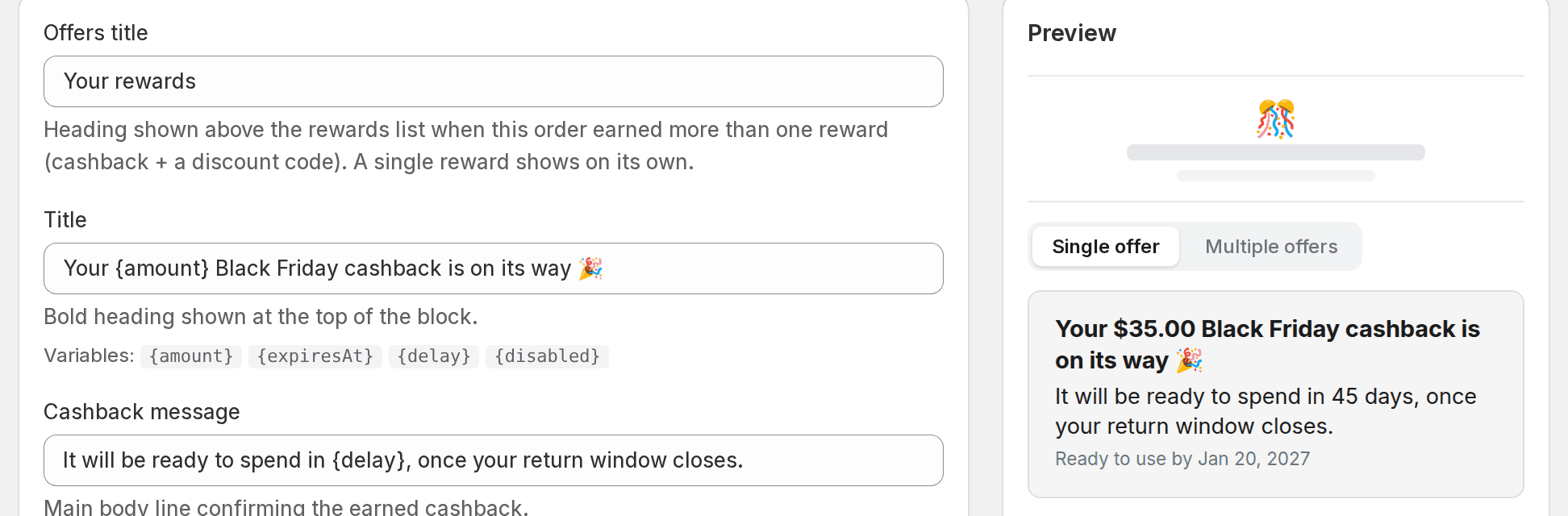
5. Let customers know their cashback is on its way
Go to Dollarback admin → Customize → Checkout → Thank you page cashback, and add {delay} to the title or message, like "Your cashback will be ready to spend in {delay}".
6. Set up the unlock email and reminders
The Store Credit Credited email is sent on the day the credit unlocks, so give it a subject customers will recognise, like "Your Black Friday cashback is ready to spend". Then go to Notifications → Expiry Notification Schedule and add up to five reminders before the credit expires. If you see a "Customer emails are disabled" banner, reach out to our support team to turn on customer emails first.
Things to Keep in Mind When you Hold BFCM Cashback
Orders placed on the last day of the sale: With Order Paid or Order Fulfilled, the program dates are checked when the order is paid or fulfilled, not when it's placed. So an order placed on the last evening of the sale and paid the next day won't be included. To avoid it, choose Order Created, so the order counts on the day it's placed.
Store credit isn't turned on at checkout: Make sure to enable the cashback to be used at the checkout. Last year, one of our brands’ credit was unlocked on time, but the store credit was turned off. The customer couldn’t use the credit until February. Check this setting in December, before the first credit unlocks.
Not sending notifications and reminders to customers: Credit on hold doesn't show in the customer's account or in the widgets. They don’t regularly log in to check if their cashback has been credited. So make sure to set up a couple of reminders and email sequences when the cashback has been credited